

Many users want to watch Yacine TV for PC on a larger screen instead of a mobile phone. Whether you’re using a Windows laptop or a Mac desktop, watching live matches, sports channels, and entertainment content becomes much more enjoyable on a bigger display. The challenge is that Yacine TV is designed as an Android APK app, which means it doesn’t run directly on desktop operating systems like Microsoft Windows or macOS.

The good news is that with the right setup you can easily run the app on your computer using Android emulators. This complete guide explains everything you need to know, including the best emulators, system requirements, installation steps, performance tips, and answers to common user questions.
Why Use Yacine TV on a Computer?
Watching Yacine TV on a PC or laptop offers several advantages compared to mobile streaming.
Bigger Screen for Sports
Watching major competitions such as the UEFA Champions League, Premier League, and La Liga becomes much more immersive on a large monitor.
Better Multitasking
You can stream matches while browsing the internet, working, or chatting online at the same time.
Improved Performance and Audio
Desktop computers typically provide stronger processors and better speakers than smartphones, leading to a smoother streaming experience.
No Battery Limitations
Unlike mobile devices, PCs and laptops allow long streaming sessions without worrying about battery drain.
Supported Devices and Features for PC
Running Yacine TV through an emulator allows access to many of the same features available on Android devices.
Key capabilities include:
- Compatible with Windows 7, Windows 8, Windows 10, and Windows 11 as well as macOS systems.
- Access to sports and entertainment channels including beIN Sports, SSC Sports, and many Arabic and international channels.
- Adjustable streaming quality options: 240p, 360p, 480p, 720p, and 1080p depending on internet speed.
- Emulator features such as multi-instance support, screen casting, and higher frame rate streaming.
Why an Android Emulator Is Required
Since Yacine TV is not available as a native desktop application, an Android emulator is required to simulate a mobile environment on your computer.
Popular emulator options include:
- BlueStacks – One of the most widely used emulators for Windows and Mac.
- NoxPlayer – Lightweight and suitable for older computers.
- LDPlayer – Known for strong gaming and streaming performance.
- MEmu Play – Offers advanced performance customization.
- MuMuPlayer – Optimized for smooth Android app performance.
Each emulator allows you to install and run APK apps just like on an Android phone.
How to Install Yacine TV on PC (Windows and Mac)
Step 1: Install an Android Emulator
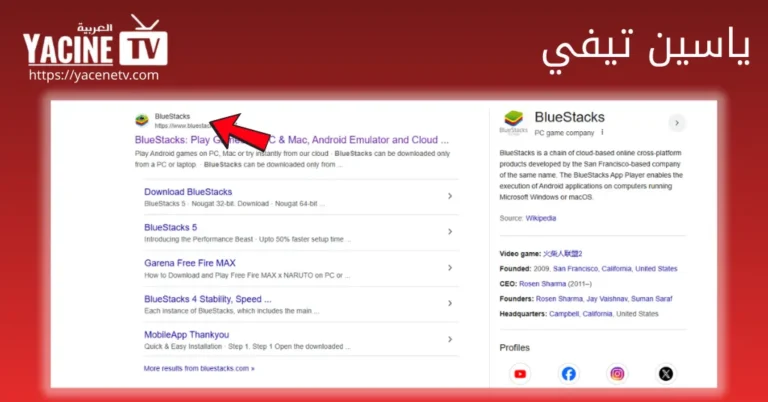
- Visit the official website of an emulator such as BlueStacks.
- Download the latest installer compatible with your system.
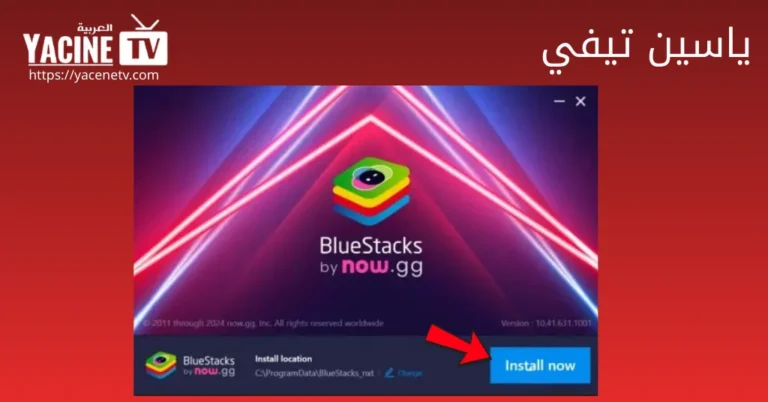
- Run the installation file and select Install.
- Wait for the setup process to complete.

Step 2: Download the Yacine TV APK
Because the app is not available on the Google Play Store, you must download the Yacine TV APK file from a trusted source. Make sure the version is up to date to avoid compatibility issues.

Step 3: Install the APK in the Emulator
- Open the Android emulator after installation.
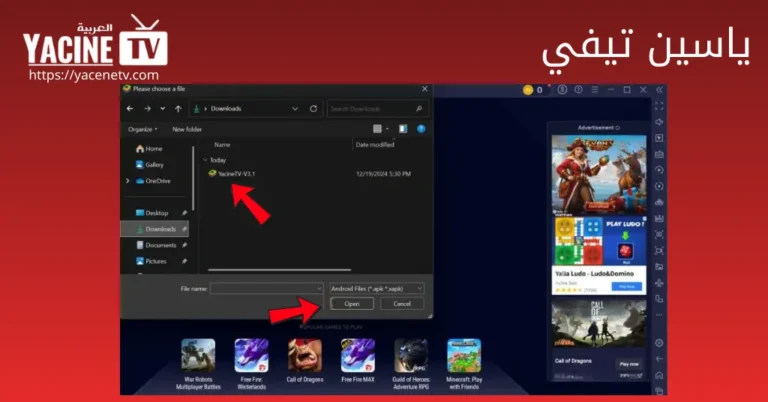
- Drag and drop the APK file into the emulator window, or click Install APK.
- Select the downloaded file.
- After installation, the app icon will appear on the emulator home screen.
Step 4: Install an External Player (Optional)
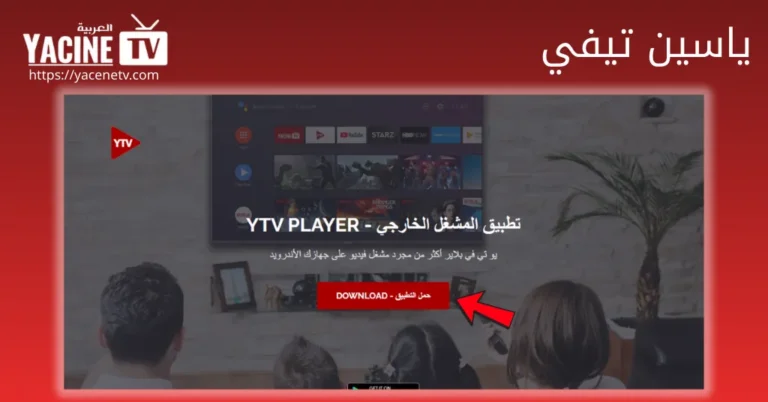
Some streams work better with external players such as:
- VLC media player
- MX Player
Installing one of these players can improve streaming stability and video compatibility.
System Requirements for Running Yacine TV on PC
| Component | Minimum | Recommended |
|---|---|---|
| Operating System | Windows 7 / macOS 10.10 | Windows 10 or 11 / macOS Big Sur+ |
| Processor | Intel or AMD CPU | Multi-core processor |
| RAM | 4 GB | 8 GB or more |
| Storage | 5–10 GB free | 20 GB free |
| Internet Speed | 5 Mbps for standard streaming | 10 Mbps or more for HD |
Meeting the recommended requirements ensures smoother playback and faster emulator performance.
Tips to Improve Yacine TV Performance on PC
To achieve the best streaming experience, consider these optimization tips.
Enable Virtualization Technology
Activate VT-x or AMD-V in your computer’s BIOS settings. This significantly improves emulator performance.
Allocate More Resources
Assign 2–4 CPU cores and 4–6 GB of RAM to the emulator if your system allows it.
Use Performance Modes
Many emulators include options like Eco Mode or Low Memory Mode that help maintain smooth playback.
Adjust Streaming Quality
If your system struggles with HD streams, switch the video resolution to 480p or 720p.
Frequently Asked Questions About Yacine TV for PC
Conclusion
Running Yacine TV for PC is completely possible with the help of Android emulators like BlueStacks or MEmu Play. Once installed, you can enjoy live football matches, Arabic channels, and entertainment content on a larger screen with improved audio and stability. Make sure your computer meets the recommended system requirements, download APK files only from trusted sources, and configure your emulator settings for the best streaming performance.
With the right setup, your PC or laptop can become a powerful streaming hub for watching sports and live TV content.
Disclaimer
This article is provided for educational and informational purposes only. We do not host or distribute Yacine TV APK files. Always respect copyright regulations and use licensed streaming services whenever possible.